
Table of Contents
Points Miles and Bling (blog) contains referral or affiliate links. The blog receives a small commission at no additional cost to you. Thank you for your continued support. Credit Card issuers are not responsible for maintaining or monitoring the accuracy of information on this website. For full details, current product information, and Terms and Conditions, click the link included.
I’m certain all of us use the Air Canada mobile app. For many of us, Aeroplan is the default go-to currency for many bookings and doing an award search on the app is super easy and avoids having to log in every time we’re on the Air Canada website. But did you know that for every trip, Air Canada has a slew of useful information in the “Trips” tab?
I book and fly 10+ Aeroplan trips a year, all managed in the Air Canada app and somehow completely missed this — I had no idea what Anshul was talking about when he brought it to my attention a few days ago. As such, we figured it’d be useful to have a rundown of what the Air Canada app is good for and how we can make the most of it.
What this blog post isn’t: a complete guide to the Air Canada app. What this blog post is: a highlight reel of the features we should care about.
Home and Search
Search
Searching and booking flights on the Air Canada app is extremely simple. For many years now, I have found booking an Aeroplan reward through the app to be faster with fewer clicks than the Air Canada website. Click the “Book” tab on the bottom and check off “Use my Aeroplan points”.
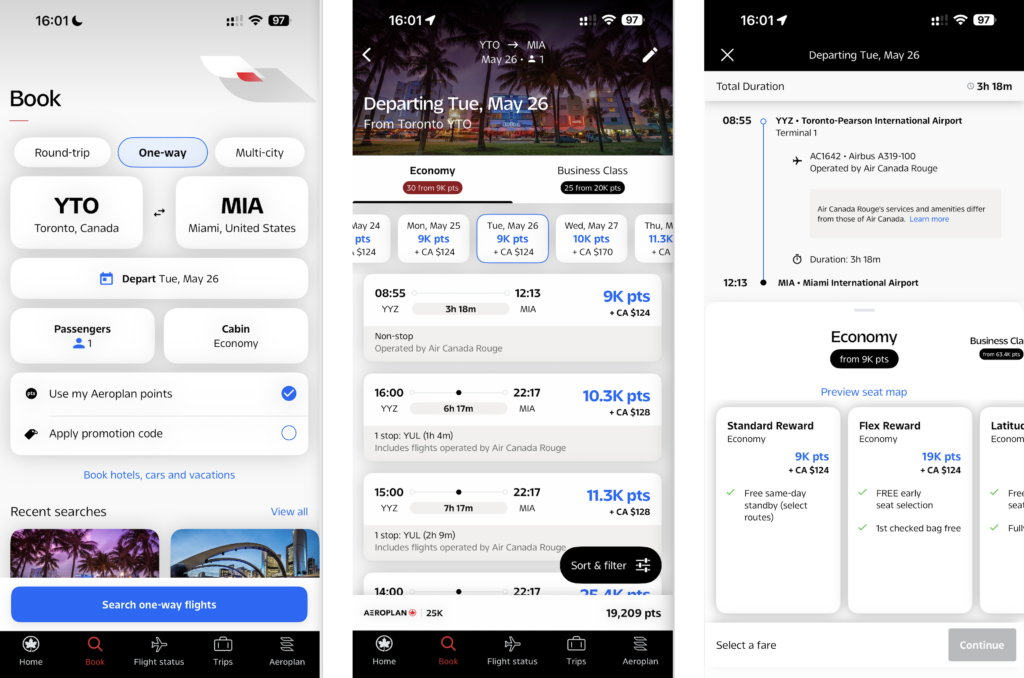
Searching and booking Aeroplan award in app
Notably, the app does not show the same points + cash options compared to booking online. It defaults to the entire base fare in points and all taxes and fees paid in cash, which should be the option you’re choosing anyway to optimize your cent per point value (CPP).
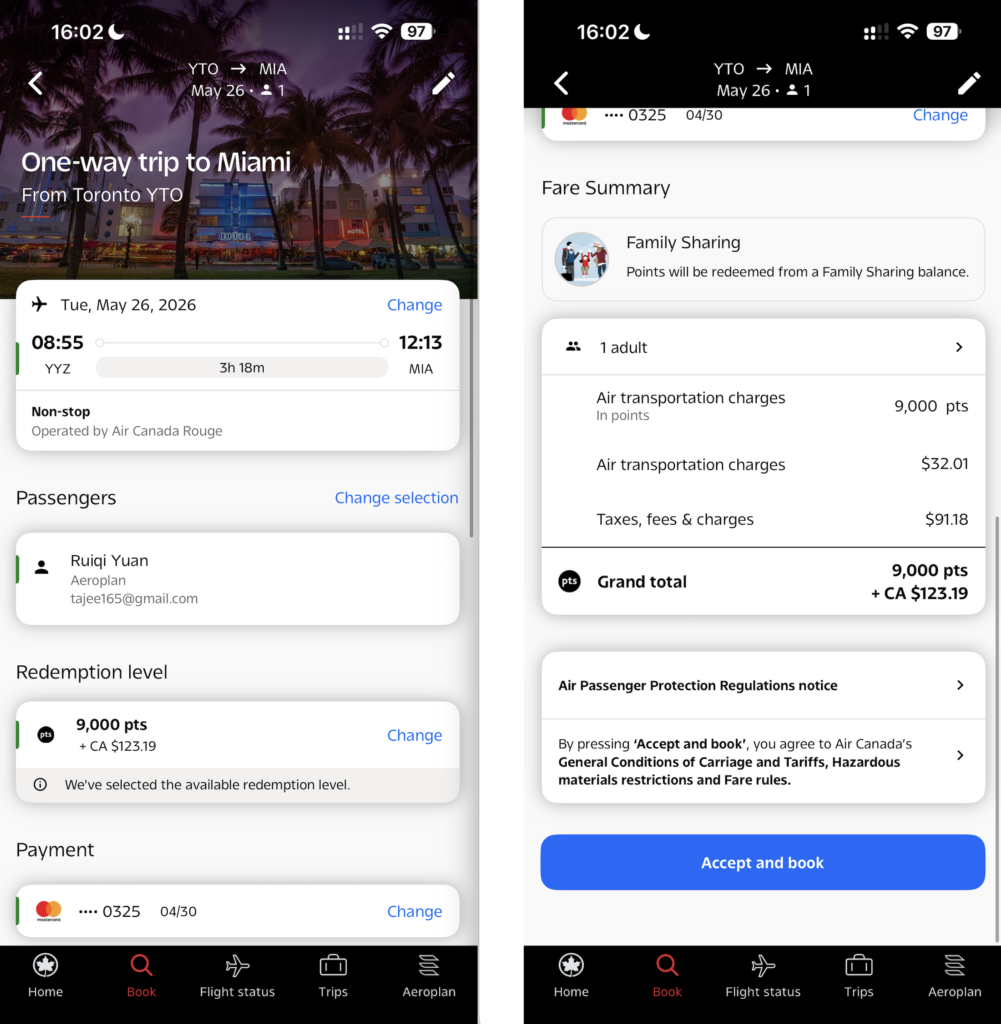
Completing an award booking in app
Menu
On the “Home” tab, there’s a few options being aware of. Click Menu on the upper-left and you’ll see Boarding passes, Bag tracking, and more. Bag tracking becomes incredibly useful during a trip, and your checked bags should automatically appear there if you link your Aeroplan number to the reservation.
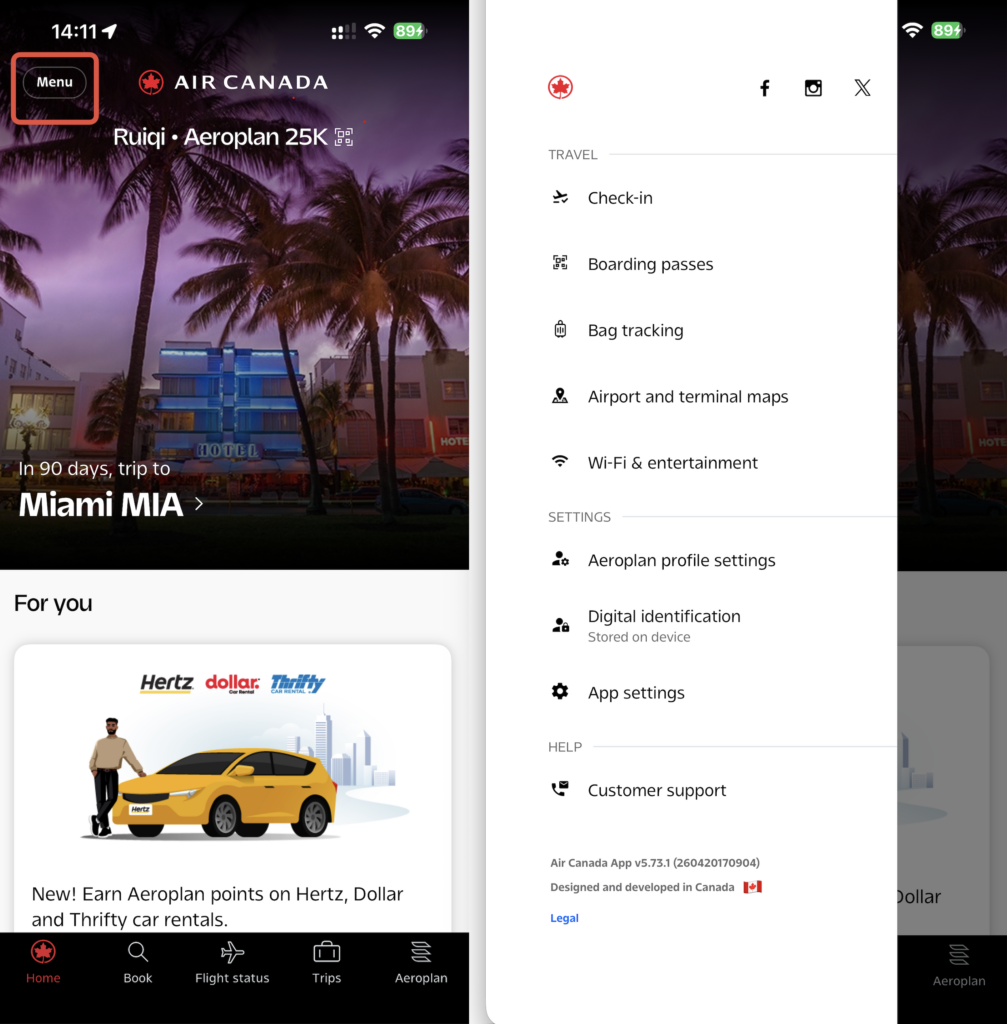
Menu tab on “Home”
You might think “Boarding passes” is not useful since your boarding passes appear at the bottom of your app whenever you’re on a trip. The feature doesn’t seem useful until you suddenly need it. One time, my boarding pass disappeared from the bottom of the screen, and the app wouldn’t pull it up because I was already marked as checked in. The only place to locate the boarding pass was in the “Boarding passes” section in the menu.
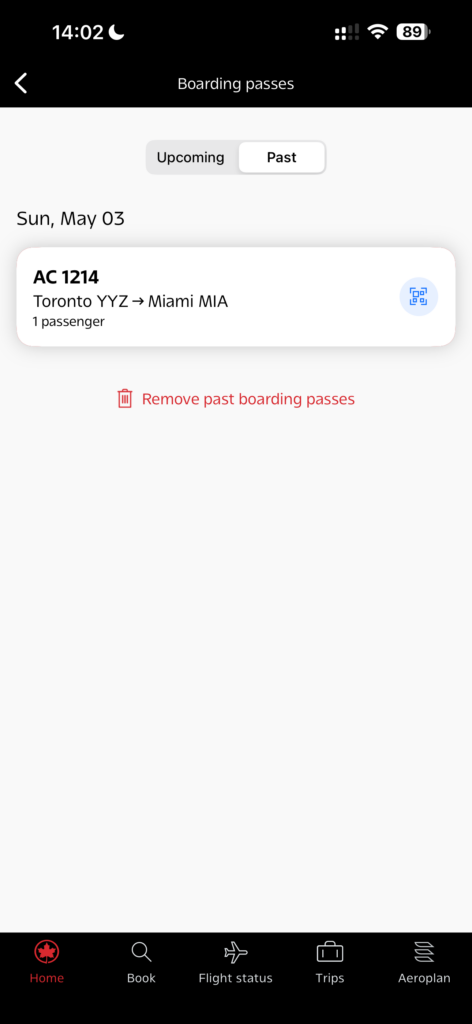
Boarding Passes in “Menu”
The “Airport and terminal maps” section of the Menu is something I’ve never heard anyone speak of, but I’m in there surprisingly often, always looking for which gate the lounge is close to. I most recently used it in Montreal to locate the domestic Maple Leaf Lounge and the app even shows lounge amenities such as showers.
In the maps view, you can zoom in and out and see details like gate numbers.
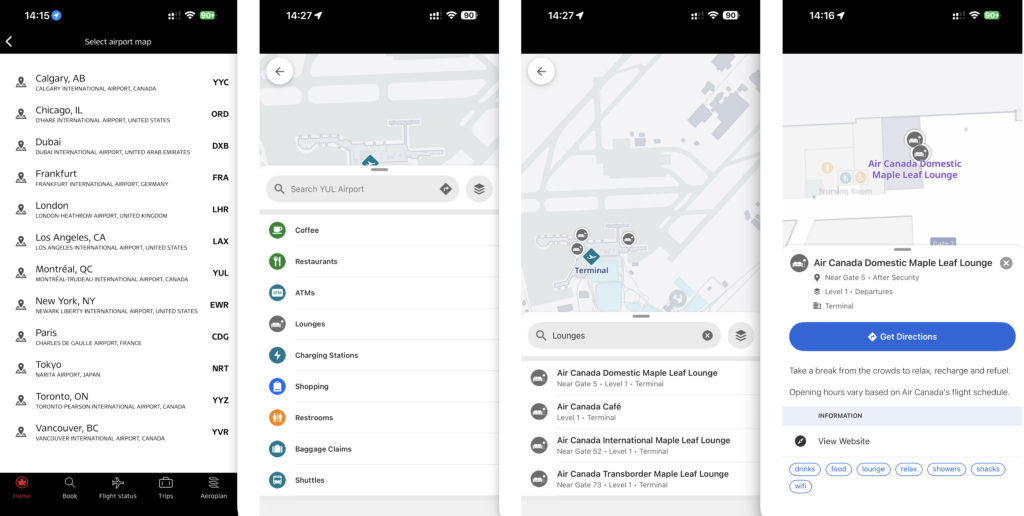
Airport and terminal maps
You can also create a Digital ID in the Menu tab (which involves scanning your passport, then your face), which stores facial recognition data and lets you board select flights and enter Maple Leaf Lounges without needing to scan your boarding pass or show ID.
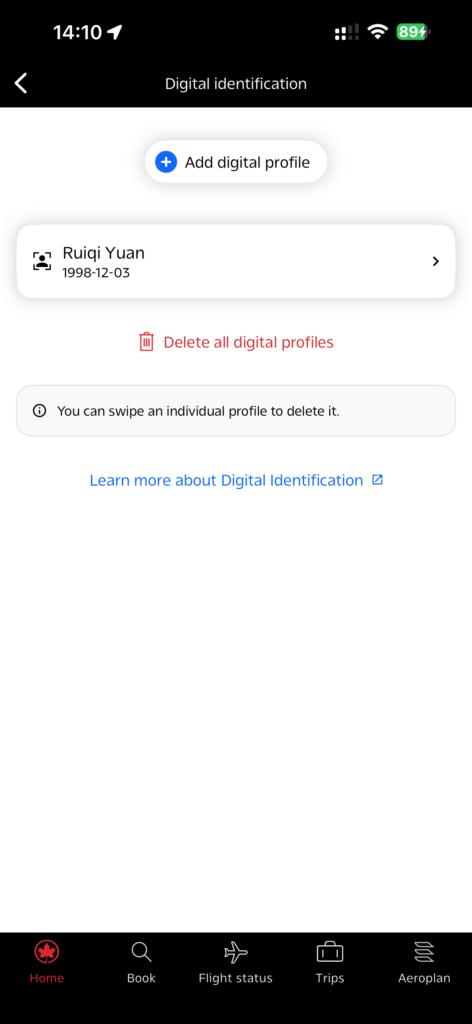
Digital ID
Trips
Within 30 days of departure, Air Canada shows a surprising amount of useful information about your upcoming trip. Anshul’s family is visiting Canada for the first time with a 3-year-old, and he actually told them to download the Air Canada app for all the useful info it has.
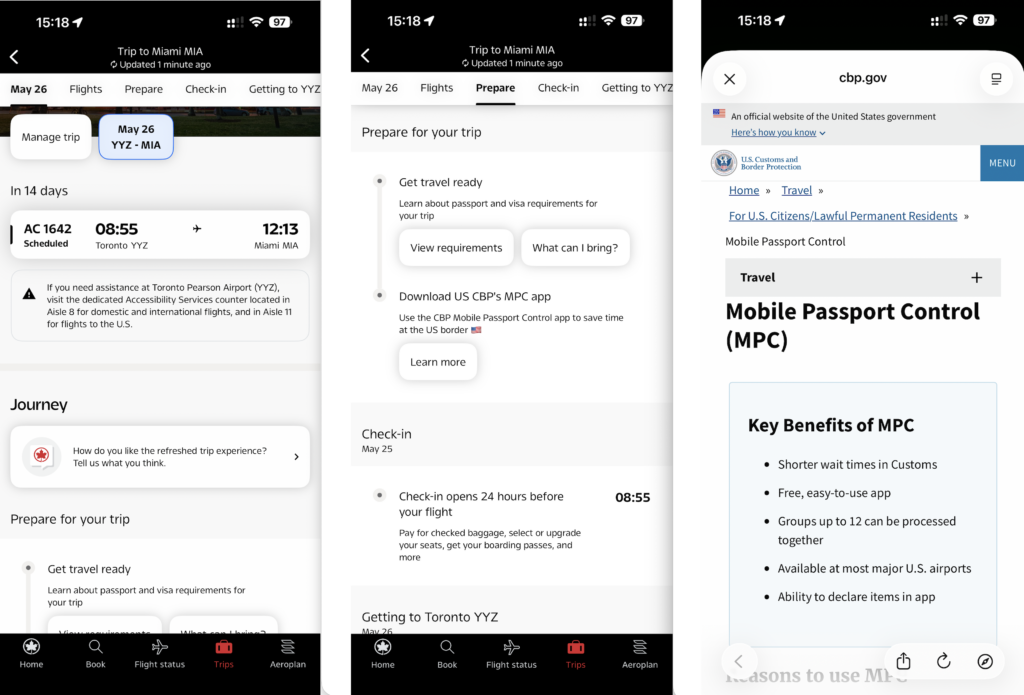
Trips tab – within 30 days of departure
Clicking into the flight details, the tabs at the top do a good job of showing each step of the flight process from preparing to check-in to getting to airport and more. For my upcoming U.S. flight, it showed visa requirements (clicking “View requirements” brings up the Sherpa page) and even suggested downloading the US CBP Mobile Passport Control (MPC) app.
If you don’t have Nexus, MPC is the next-best option and significantly expedites the preclearance time at no cost.
Scrolling through the trip info, Air Canada will show the baggage drop-off deadline, which in this case is 60 minutes. It shows the boarding time and when the boarding gate closes. After landing, the app updates the baggage carousel number. All of this is genuinely useful information to have.
While it’s easy to get all this information on the Air Canada website or in a third-party app, there’s something to be said for having it all in one place seamlessly, and the default airline app happens to be the most convenient spot.
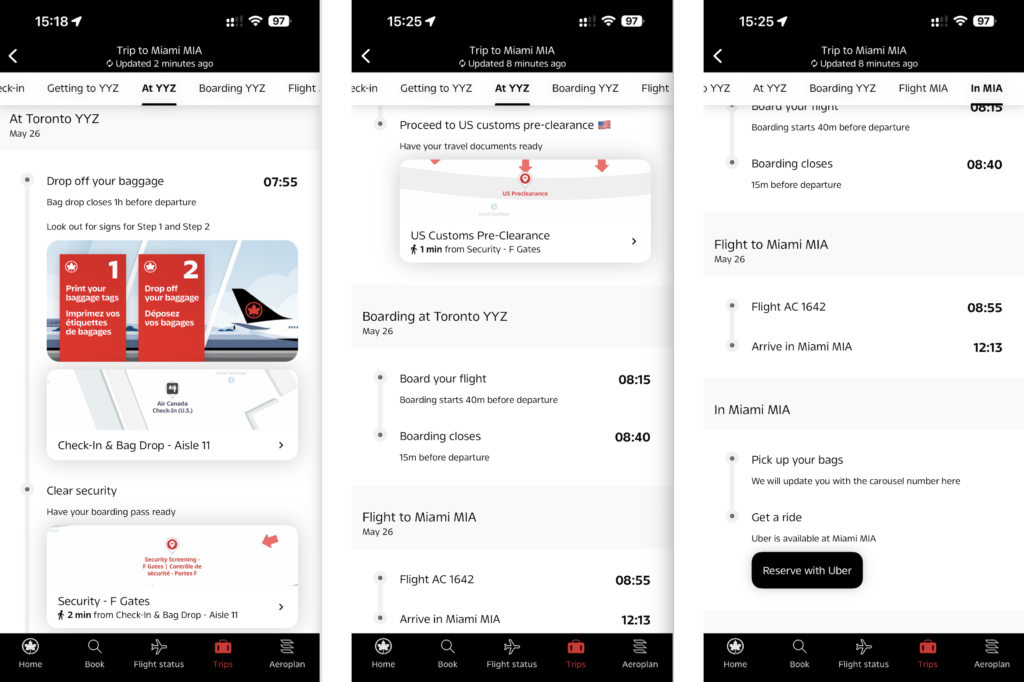
All the info you need lives in the “Trips” tab
Flight Status & Aeroplan
Flight status is likely a tab you’re already familiar with: it’s the best place to check on flight details like delays or your place on the upgrade list.
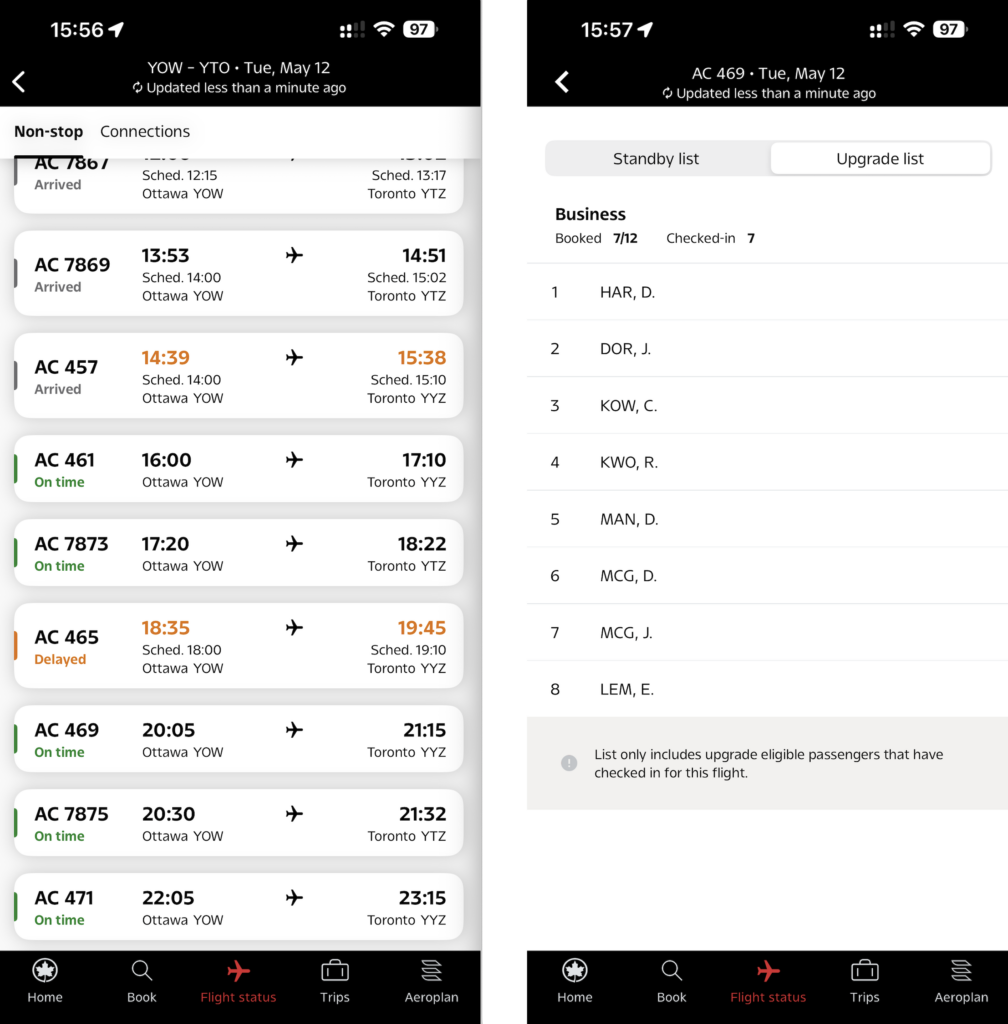
Flight Status
I like to use flight status to see which other flights are operating (on time) on my route. That lets me try to standby for an earlier flight or have reaccommodation options ready if the airline delays or cancels my flight.
The Aeroplan tab contains everything you need regarding your status, benefits, and activity. Again, this tab is very straightforward to browse, and if you’ve ever used eUpgrades or Maple Leaf Lounge passes, you’ve been in this section of the app before.
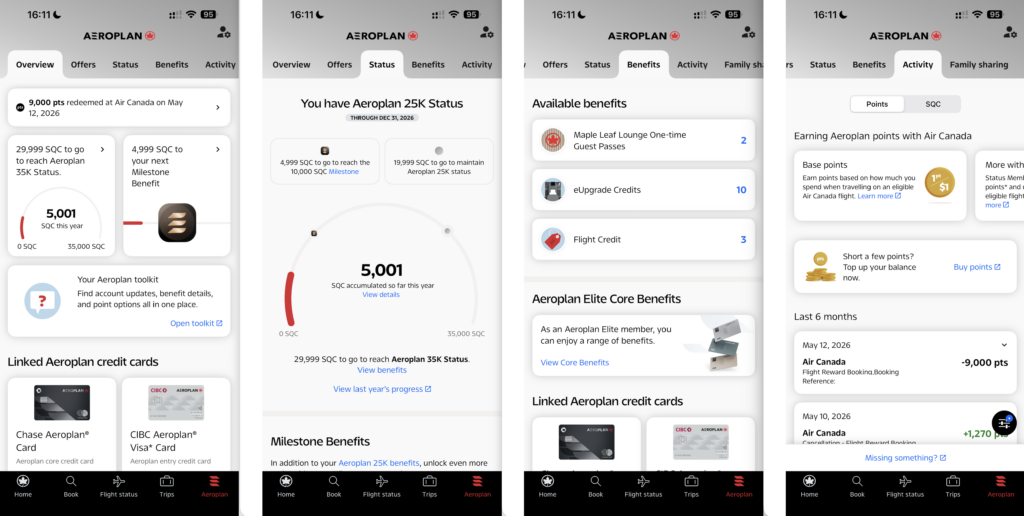
All about your Aeroplan status
Clicking on Offers shows Air Canada’s current promotions and you’ll see the Hertz status match, which just launched last week, already loaded in the app.
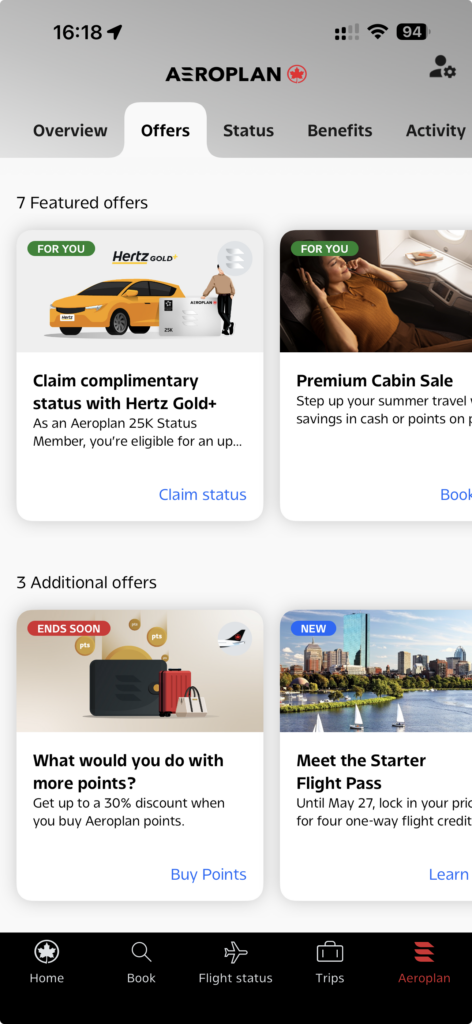
With Aeroplan status and/or a co-branded credit card, status match to Hertz Five Star or President’s Circle
Takeaway
Air Canada genuinely has one of the better airline apps out there, and I say that as someone who uses many third-party apps and tools for travel. The real standout is the “Trips” tab, which surfaces a surprising amount of genuinely useful information in one place: baggage deadlines, boarding times, visa requirements, gate closing times, baggage carousel information after landing, and even links to tools like Mobile Passport Control.
None of this is information you can’t find elsewhere, but having it centralized inside the airline app makes it far more convenient while travelling. I completely overlooked most of these features myself until recently, and now the “Trips” tab is something I’ll actually be checking before flights going forward.
There are more features you’ll discover while using the app that aren’t covered here, like the ability to save passenger info, which makes booking trips frictionless.
