
Table of Contents
Points Miles and Bling (blog) contains referral or affiliate links. The blog receives a small commission at no additional cost to you. Thank you for your continued support. Credit Card issuers are not responsible for maintaining or monitoring the accuracy of information on this website. For full details, current product information, and Terms and Conditions, click the link included.
I’m sure we all use the Air Canada mobile app. For many of us, Aeroplan is the default go-to currency for many bookings and doing an award search on the app is super easy and avoids having to log in every time we’re on the Air Canada website. But did you know that for every trip, Air Canada has a slew of useful information in the “Trips” tab?
Also, a new update adds a chat feature on the home screen and a “Bravo! Recognize a team member” option in the Help menu. I’m a big fan of both these inclusions, and they’re a great example of ways Air Canada is actually making the app useful. As a smaller update, the name is now “Air Canada + Aeroplan” in the app store.
What this blog post isn’t: a complete guide to the Air Canada app. What this blog post is: a highlight reel of the features we should care about.
Air Canada has also just been named Best Airline App at the 2026 World Aviation Festival, with one highlighted feature being the redesigned home screen that adapts to each stage of your upcoming trip, showing you information at the exact times you need it. The home screen rotates between check-in, boarding passes, flight status, bag tracking, and directions to the next gate in Toronto, Montreal, and Vancouver.
Other app highlights include a new low-fare calendar and side-by-side fare comparison with fare rules and baggage allowances, so you have all the information before you book. Baggage tracking now also displays the name and photo of the person who loaded your bag.
Home, Search, and Chat
Home
The “Home” tab is the default place you land when opening the app and shows your upcoming trip details, a button to manage your trip and check passport requirements, and then a button to head to Air Canada’s website to submit a Bid Upgrade.
Scrolling down, there’s the “For you” section, which depicts the latest news Air Canada wants to highlight. At the time of writing, that is the new DINR partnership, showcasing Seville as a new destination, and the latest 15% promotion when converting Marriott Bonvoy points to Aeroplan.
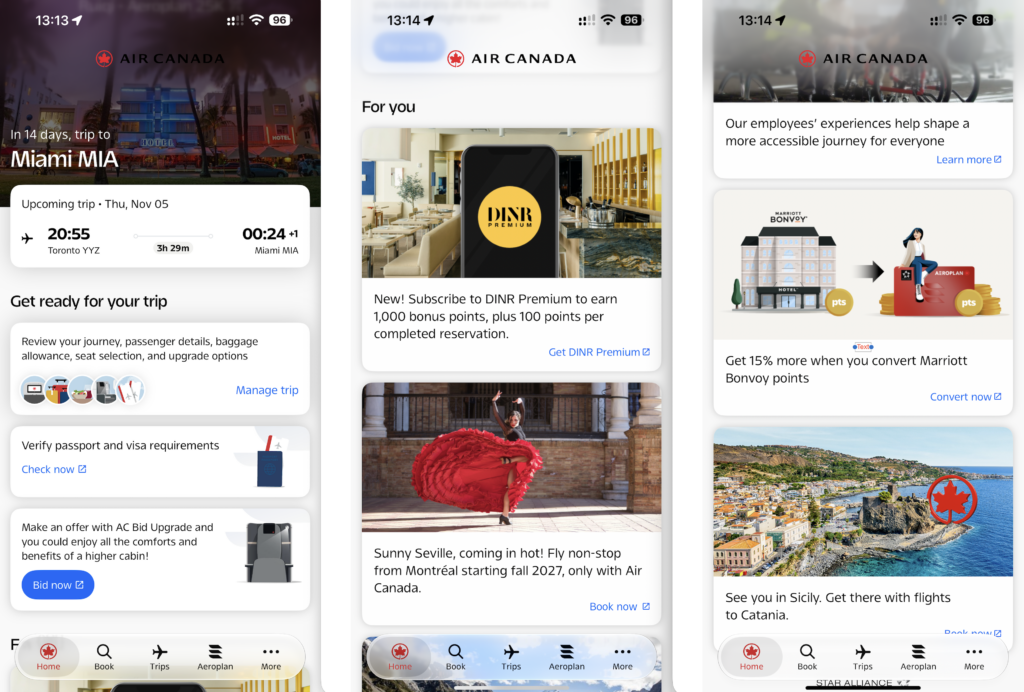
Air Canada app “Home” tab
Search
Searching and booking flights on the Air Canada app is extremely simple. For many years now, I have found booking an Aeroplan reward through the app to be faster with fewer clicks than the Air Canada website. Click the “Book” tab on the bottom and check off “Use my Aeroplan points”.
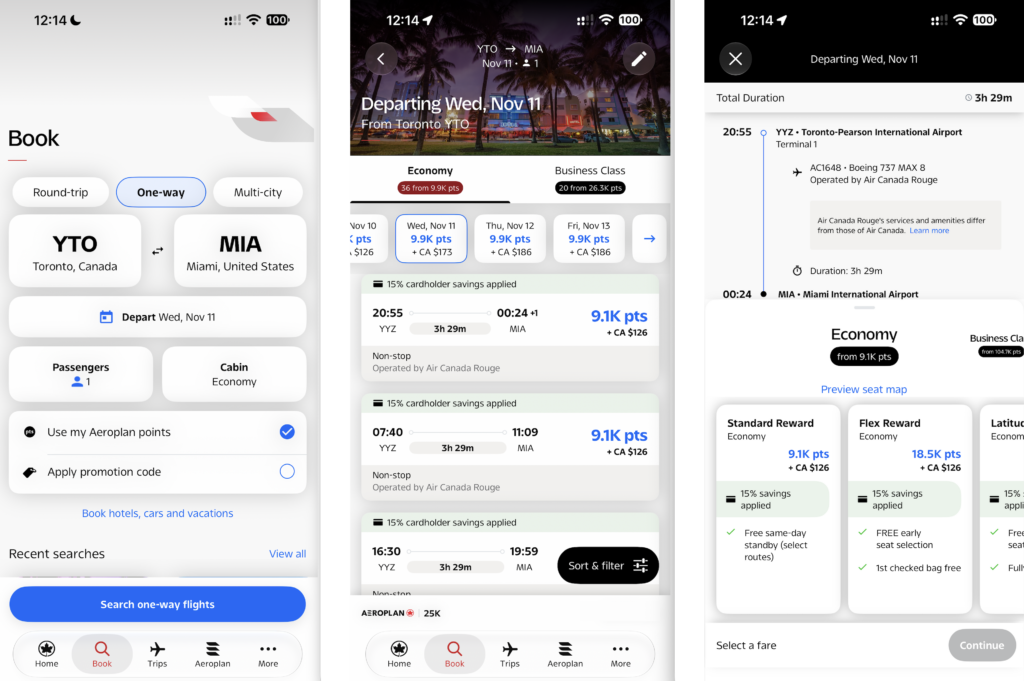
Searching and booking Aeroplan award in app
Notably, the app does not show the same points + cash options compared to booking online. It defaults to the entire base fare in points and all taxes and fees paid in cash, which should be the option you’re choosing anyway to optimize your cent per point value (CPP).
It is nice that the app recognizes the 15% redemption discount as an Aeroplan co-branded cardholder benefit.
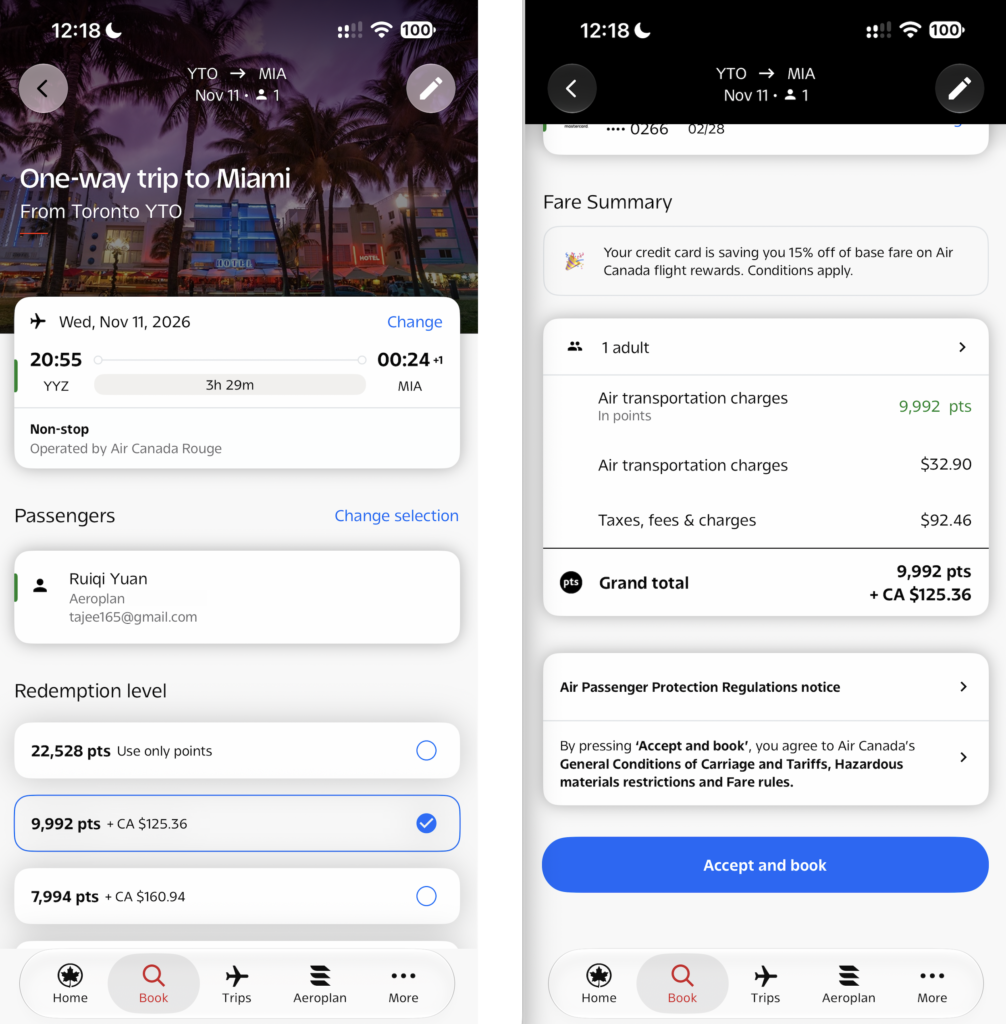
Completing an award booking in app
Chat
It appears to be a brand-new feature on the home page: the chat icon in the top-right corner. I commend Air Canada for not only bringing chat to the mobile app but also placing it in a highly accessible and noticeable spot.

Air Canada app chat function
Two things about chat I really like: it clearly denotes Aeroplan queries can’t be completed and it offers a callback option proactively when outside chat hours.
One disclaimer: at the time of writing, the chat function does not appear in my Air Canada app (screenshots by Anshul). Is it because this is a beta feature slowly being drip-fed to members or because my Elite status is only 25K? Time will tell. 50K Elite members do seem to show the chat option already.
I do hope to get the chat option soon, as it’s by far my favourite way to contact airlines.
Flight Status, Boarding Passes, Baggage Tracking, Give Kudos to Crew
On the bottom tab, click “More” on the rightmost side to find additional menu features. You’ll see Boarding passes, Bag tracking, and more. Bag tracking becomes incredibly useful during a trip, and your checked bags should automatically appear there if you link your Aeroplan number to the reservation.
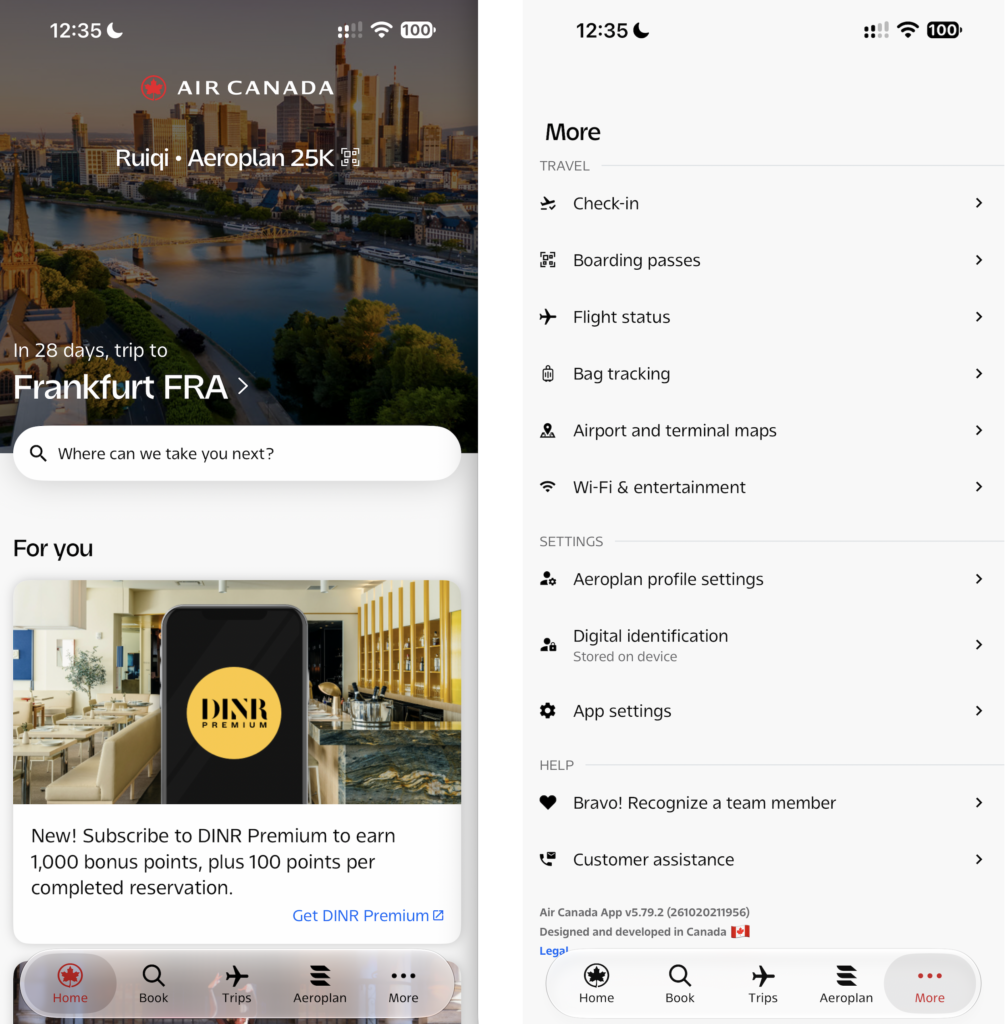
“More” is where your boarding passes are stored
Flight Status
Flight Status used to exist as its own tab on the bottom bar, but was moved to part of the “More” menu in Air Canada’s latest round of updates.
It’s the best place to check on flight details like delays or your place on the upgrade list.

Check your spot on the upgrade list in “Flight Status”
The tabs at the top are useful to check out the aircraft you’re on, track the inbound flight, if amenities like wi-fi are available, the onboard Bistro (economy buy on board), business class menus for upcoming flights, the accessibility of your aircraft, and other details like whether there’s a time zone change between your origin and destination, as well as the weather on arrival.
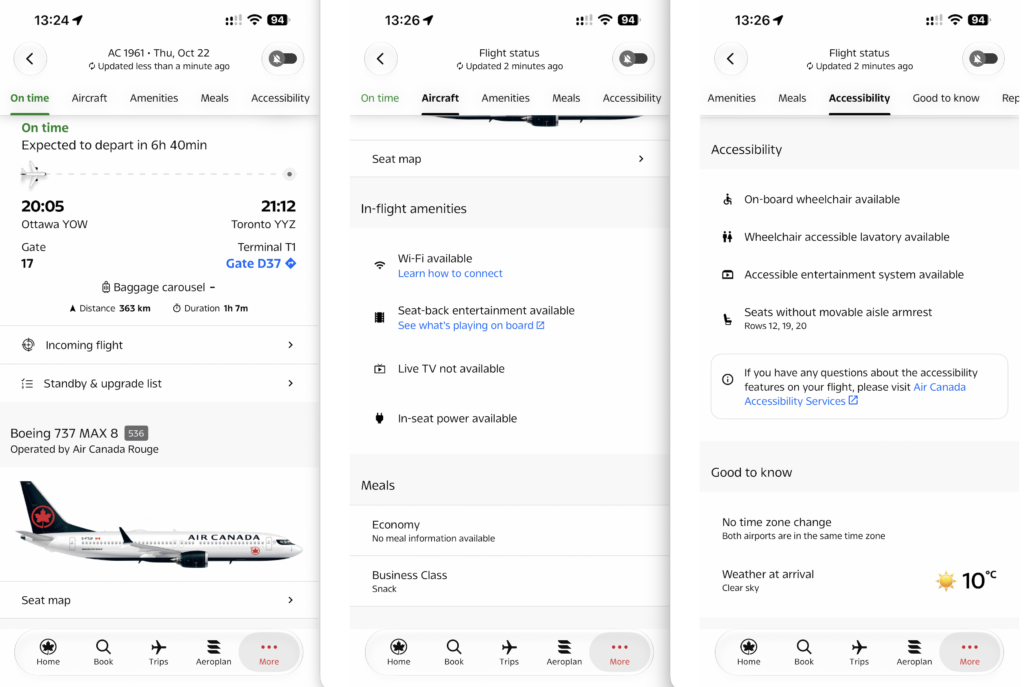
Track inbound aircraft, look at the menu, and learn the weather on arrival
I mostly use flight status to see which other flights are operating (on time) on my route. That lets me try to standby for an earlier flight or have reaccommodation options ready if the airline delays or cancels my flight.
Boarding Passes
You might think “Boarding passes” is not useful since your boarding passes appear at the bottom of your app whenever you’re on a trip. The feature doesn’t seem useful until you suddenly need it. One time, my boarding pass disappeared from the bottom of the screen, and the app wouldn’t bring it back up because I was already checked in. The only place to locate the boarding pass was in the “Boarding passes” section in the menu.

Boarding Passes in “More”
Airport and Terminal Maps
I’ve never heard anyone mention the “Airport and terminal maps” section of the Menu, but I’m in there surprisingly often, always looking for which gate the lounge is closest to. I most recently used it in Montreal to locate the domestic Maple Leaf Lounge, and the app even shows lounge amenities such as showers.
In the maps view, you can zoom in and out and see details like gate numbers.
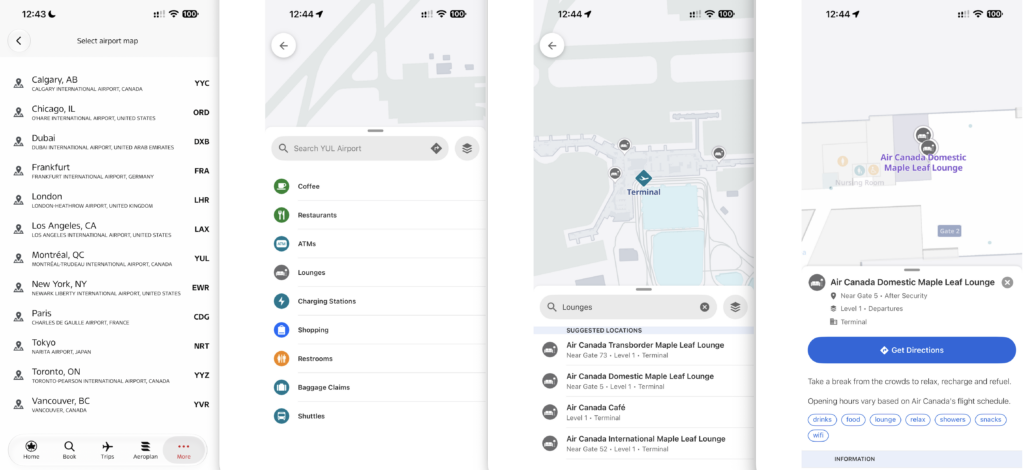
Airport and terminal maps
Create a Digital ID
You can also create a Digital ID in the Menu tab (which involves scanning your passport, then your face), which stores facial recognition data and lets you board select flights and enter Maple Leaf Lounges without needing to scan your boarding pass or show ID.

Add your “Digital identification” in the Air Canada app
Bravo! Recognize a Crew Member
Perhaps a minor feature to many members, I really appreciate the ability to immediately provide kudos to a crew member. Feedback goes a long way in the airline industry, and Air Canada has made it extremely easy to provide it.
All airlines offer the ability to provide feedback, but it’s usually through a dedicated webpage hidden behind other homepage items, and the friction involved makes even the best-intentioned of us forget or find it too cumbersome. After the flight, we may also forget key details like the crew member’s name or the exact flight date (having to search it in our emails adds another layer of friction).
Now, you can open the mobile app and give feedback during the flight itself in a few simple clicks with Air Canada’s free in-flight wi-fi.
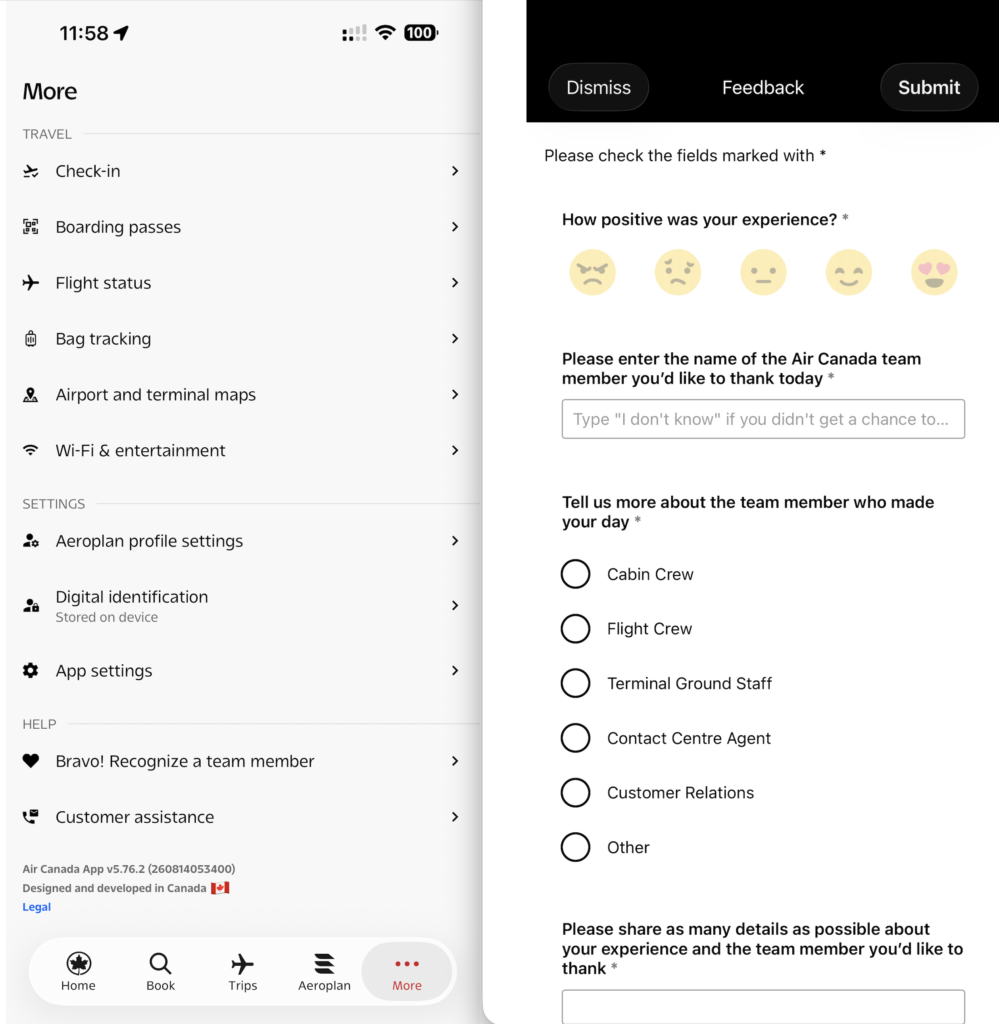
Give kudos to crew members in-app
Trips
Within 30 days of departure, Air Canada shows a surprising amount of useful information about your upcoming trip. Anshul’s family is visiting Canada for the first time with a 3-year-old, and he actually told them to download the Air Canada app for all the useful info it has.
After clicking “Trips” on the bottom tab, you can click “View journey” to see an overview of each step of the flight process, from preparing to check in to getting to the airport and more. For my upcoming U.S. flight, it showed visa requirements (clicking “View requirements” opens the Sherpa page) and even suggested downloading the U.S. CBP Mobile Passport Control (MPC) app.
If you don’t have Nexus, MPC is the next-best option and significantly expedites the preclearance time at no cost.
The instructions make the airport experience much easier to navigate, telling you exactly which aisle to drop off bags/check-in and then how long the walk is to security (in my screenshot below, 2 minutes).
Scrolling further down, Air Canada will show the baggage drop-off deadline, the boarding time, and when the boarding gate closes. After landing, the app updates the baggage carousel number. All of this is genuinely useful information to have.

Trips tab – within 30 days of departure
While it’s easy to get all this information on the Air Canada website or in a third-party app, there’s something to be said for having it all in one place seamlessly, and the default airline app happens to be the most convenient spot.
Aeroplan
The Aeroplan tab contains everything you need regarding your status, benefits, and activity. This tab is very straightforward to browse, and if you’ve ever used eUpgrades or Maple Leaf Lounge passes, you’ve been in this section of the app before.

All about your Aeroplan status
Clicking on Offers shows Air Canada’s current promotions, and you’ll see the latest Chexy and Aeroplan partnership development highlighted here.
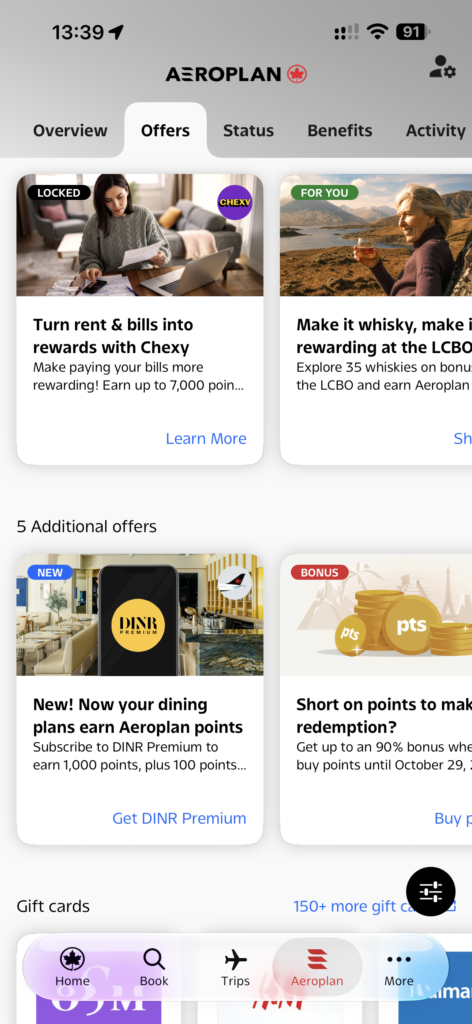
“Offers” shows the latest promotions Air Canada is highlighting
Takeaway
Air Canada genuinely has one of the better airline apps out there, and the addition of in-app chat and the ability to immediately recognize a team member makes it even more useful. I particularly like that both features remove friction from things you might otherwise put off, whether that’s contacting Air Canada or remembering to send positive feedback after a great flight.
The “Trips” tab remains one of my favourite parts of the app, with baggage deadlines, boarding times, visa requirements, gate closing times, baggage carousel information, and other useful details centralized in one place. Add in bag tracking, airport maps, flight status, Aeroplan account management, and easy award searches, and there’s surprisingly little reason to leave the app when travelling with Air Canada.
There are more features you’ll discover while using the app that aren’t covered here, like the ability to save passenger info and credit cards, which makes booking trips frictionless.

2 comments
One useful app feature I like and I hope they keep.
When searching for award flights, you still get to see if it is a full J award or mixed class. And if it is a mixed class, the white means more than 50% of the journey is in business class, while red means less than 50% of the journey is in business class.
The website removed this mixed class view in one of the previous updates. But the app still has this feature, and I find it useful to decide which award flight to check out.
Yeah, it’s annoying the website removed it… used to show in red if it was under 50%. Even the mixed cabin visual bar hidden in “More options” is hit and miss for me.